
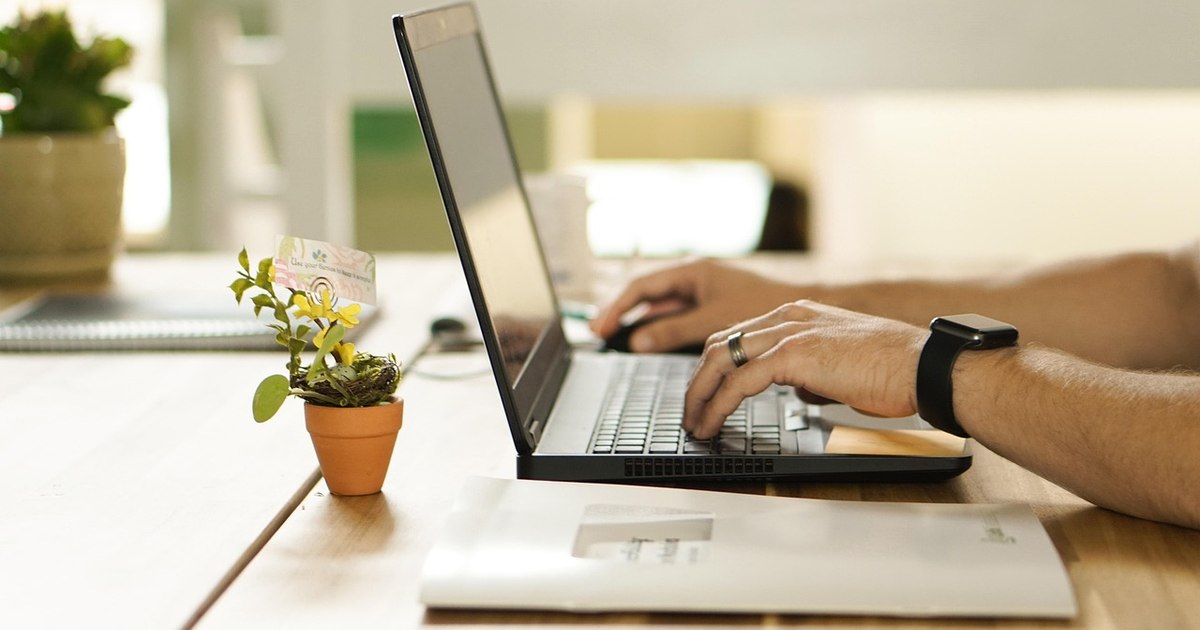
After smartphones, laptops are the most important devices we have at home, because we use them for work, for serious tasks like filing tax returns or studying, but also for entertainment, whether it’s watching a movie or playing games.
Although these devices are becoming faster, more shock-resistant and more powerful, the passage of time is inevitable. Laptops “age” after the first two years, with the average lifespan being around five years, depending on how much they’ve been used.
Over the years, you may notice that your laptop isn’t performing as well as it used to. Maybe it takes a long time to open programs, the battery doesn’t “last” as long as it used to, or it’s even outdated and doesn’t allow you to run certain apps.
But as with any object, if you take care of it and maintain it properly, you could give your device a longer life, and many of these adjustments you can make are quick and simple, so they are really worth applying, writes El Economista.
Optimum use of a laptop involves both taking care of the physical components (hardware) and effectively managing the operating system (software) to ensure high performance and a prolonged lifespan.
To maximize the life of the device, experts recommend:
1. Physical Care and Maintenance (Hardware)
Ensures proper ventilation: Do not use the laptop on soft surfaces (bed, sofa, blankets) as they block the ventilation slots and cause overheating. Use a flat, rigid surface or a laptop stand.
Periodic cleaning: Use compressed air spray to remove dust from fans and keyboard. Use microfiber cloths for the screen.
Beware of liquids and food: Keep drinks away to avoid accidents that can destroy internal components.
Proper closing: Close the lid carefully, from the center, not from a corner, to prevent tension on the hinges.
2. Battery Optimization
Avoid full download: Do not let the battery reach 0%. It is also ideal not to keep it constantly charged at 100%, but if possible to keep it between 20% and 80% to extend the life of the cells.
Remove the charger: If the laptop is left on at the desk for long periods of time, there is no need to keep the charger plugged in permanently after charging.
Power settings: Use “Eco” or “Battery Saver” mode in Windows when you don’t need maximum performance.
3. Software Performance and Security
Update the system: Install Windows/macOS updates and drivers (especially video card drivers) regularly for security and performance improvements.
Manage startup programs: Disable applications that start automatically with Windows (via Task Manager -> Startup) to reduce loading time.
Free up space: Delete temporary files and unused applications. Use Windows’ “Disk Cleanup” or “Storage Sense” utility.
Use an SSD: If your laptop is old and has an HDD, upgrading to an SSD will dramatically improve system responsiveness.
4. Ergonomics
Screen position: Place the screen so that the top edge is at eye level or slightly below to avoid neck pain.
Use peripherals: For long periods of work, connect an external mouse and keyboard.
Following these recommendations will help your laptop run faster and prevent frequent technical breakdowns.